
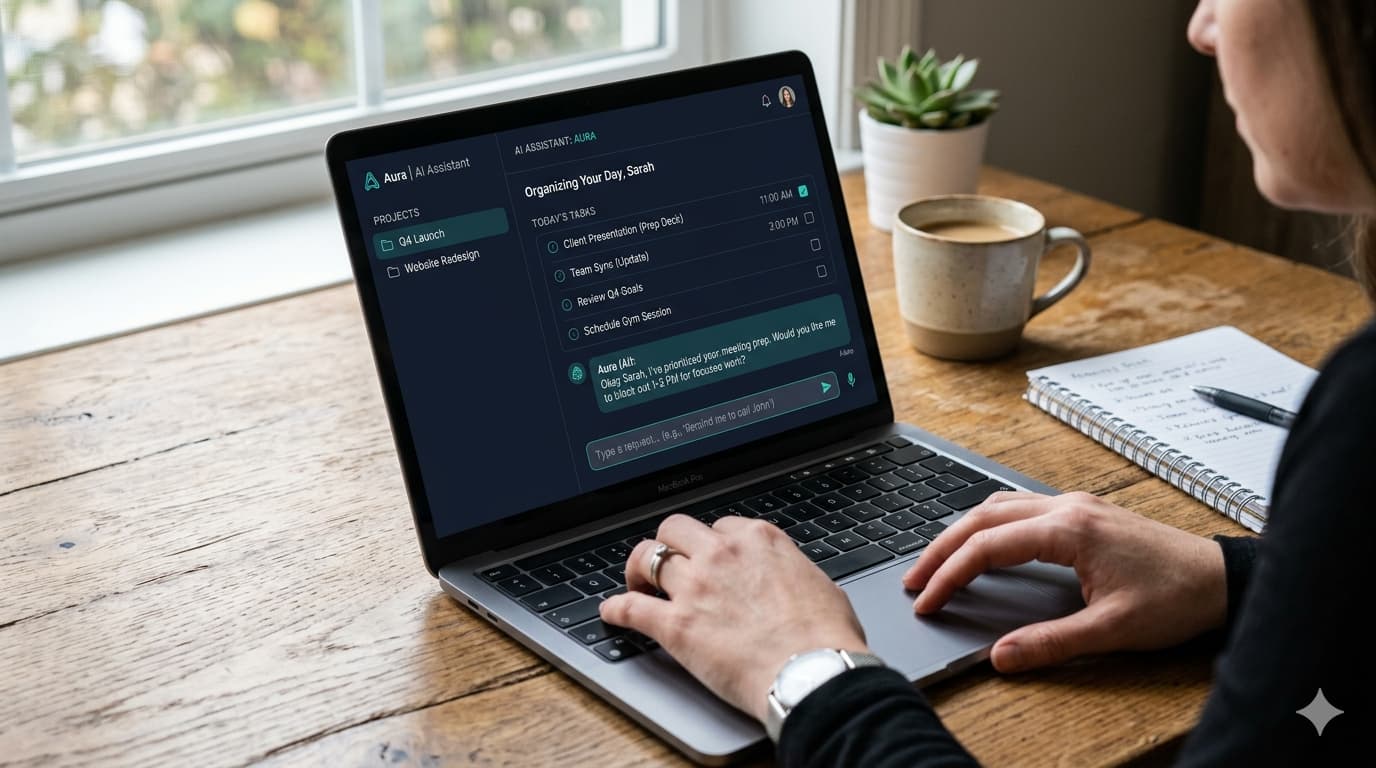
On-Device AI Laptop Guide
AI on laptops used to feel like something extra. A feature you might try once and forget. That’s starting to change with On-device AI on your laptop.
Now, a lot of things your laptop does quietly in the background are powered by AI, and the interesting part is, some of it doesn’t even need the internet anymore. It just runs on your device.
If that sounds a bit confusing, don’t worry. You don’t need to understand the technical side to actually use it. Once you know where to look, it’s surprisingly simple.
What is On-Device AI Laptop Technology?
Think of it this way.
Instead of your laptop sending data to the cloud and waiting for a response, it handles certain AI tasks on its own. Right there, on your device.
That means things can happen faster. And in some cases, even without the internet.
A simple example?
Noise cancellation during calls. Your laptop can filter out background noise in real time. No delay. No uploading audio somewhere. It just… works.
The same goes for things like image edits or live captions.
Do You Need a Special Laptop?
Not always, but newer laptops definitely do this better.
A lot of this comes down to newer processors that are designed specifically to handle AI tasks more efficiently.
If your device runs on newer chips from Intel (like Core Ultra) or AMD (Ryzen AI), you’ll have more built-in support for AI features.
That said, even slightly older laptops can still use some AI tools. They just might rely more on the internet.
So if your laptop is from the last couple of years, there’s a good chance you already have access to at least some of this.
You’ve probably already seen this on smartphones, where AI features work directly on the device without the internet.
What You Can Actually Do With On-Device AI on Laptop
This is where it starts to feel useful. Not futuristic. Just… practical.
• Writing & Summarizing
You can draft emails, clean up notes, or summarize long text. Some tools even work offline or partially offline.
• Image Editing
Ever removed an object from a photo with one click? Or enhanced a blurry image? That’s AI doing its thing locally.
• Voice & Video
Background noise removal, live captions, and auto-framing in video calls. You’ve probably used these without thinking much about it.
• Smart Assistance
Search feels faster. Suggestions feel more relevant. It’s subtle, but once you notice it, you start relying on it.
How to Use On-Device AI (Step-by-Step)
You don’t need to install anything complicated to get started. Just check a few things.
Step 1: Look for Built-in Features
If you’re on Windows, features like Copilot or AI-powered settings are a good place to begin. Explore your system settings—you’ll find more than you expect.
Step 2: Try AI Apps
Some apps are designed to use on-device AI. Photo editors, note apps, and even some writing tools. Start with what you already use.
Step 3: Turn On the Right Settings
Sometimes AI features are there but not enabled. Check settings for things like captions, noise cancellation, or smart suggestions.
It doesn’t take long. Just a bit of exploring.
Sample Prompts to Try on Your AI Laptop
If you’re not sure where to start, that’s normal. The easiest way is just to try a few simple prompts and see what happens.
Here are a few you can copy and tweak:
For Writing & Notes
- “Summarize this paragraph in simple words.”
- “Rewrite this email to sound more polite.”
- “Turn these notes into a short summary.”
Useful when you’re working on emails, documents, or quick notes.
For Image Editing
- “Remove the background from this image.”
- “Enhance this photo and make it clearer.”
- “Remove unwanted objects from this picture.”
Works well with built-in photo apps or editing tools.
For Voice & Meetings
- “Turn on noise cancellation.”
- “Show live captions for this video.”
- “Reduce background noise during calls.”
These are often settings, not typed prompts—but still AI-powered.
For Everyday Tasks
- “Find files related to my recent work.”
- “Suggest what I should do next based on this document.”
- “Organize these files into folders.”
This is where things start to feel like real assistance.
One Small Tip
Don’t overthink it.
You don’t need perfect prompts. Just type what you want in simple words. Most AI tools understand more than you expect.
If something doesn’t work the first time, tweak it a bit and try again. That’s honestly how most people figure it out.
Why On-Device AI on Laptops Looks Different
You might not notice it instantly, but after a while, it feels smoother.
Things happen quicker. There’s less waiting.
And there’s also a privacy angle. Since data doesn’t always leave your device, it feels a bit more secure.
You’re probably already seeing this shift on phones too, where AI is starting to run directly on the device instead of relying on the cloud. The same idea is now making its way into laptops.
Once you get comfortable with these features, it also helps to explore some of the free tools that are built around them.
Things to Keep in Mind
It’s not perfect yet.
Some features still depend on the internet. Others work better on newer hardware. And honestly, not every “AI feature” is as useful as it sounds.
So it’s okay if you try something and don’t stick with it. That’s part of figuring out what actually helps.
What’s Coming Next
This is just the beginning.
Laptops are slowly becoming more than just tools you use. They’re starting to assist you, sometimes without you even asking.
As chips from companies like Intel and AMD improve, this will only get better. Faster responses. Smarter features. Less dependence on the internet.
And maybe, over time, you’ll spend less effort doing small tasks… and more time focusing on what actually matters.
FAQs
Q: What is on-device AI in simple terms?
It means your laptop can run AI tasks directly, without always needing the internet.
Q: Do I need the internet to use it?
Not always. Some features work offline, but others still rely on the cloud.
Q: Which laptops support on-device AI?
Most newer laptops, especially those with Intel Core Ultra or AMD Ryzen AI chips, support it better.

COMMENTS